

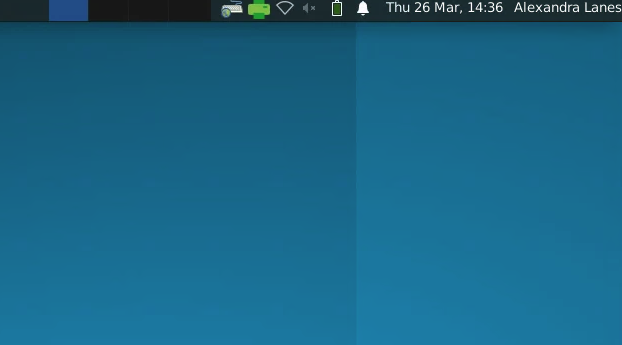
On Maths Linux Desktops Follow Me printing (also known as "FindMe" printing) is available by clicking on the green printer icon in the task bar. The system will ask you to log in to the University's Microsoft systems if you have not already done this; this window may also pop up when you log in.
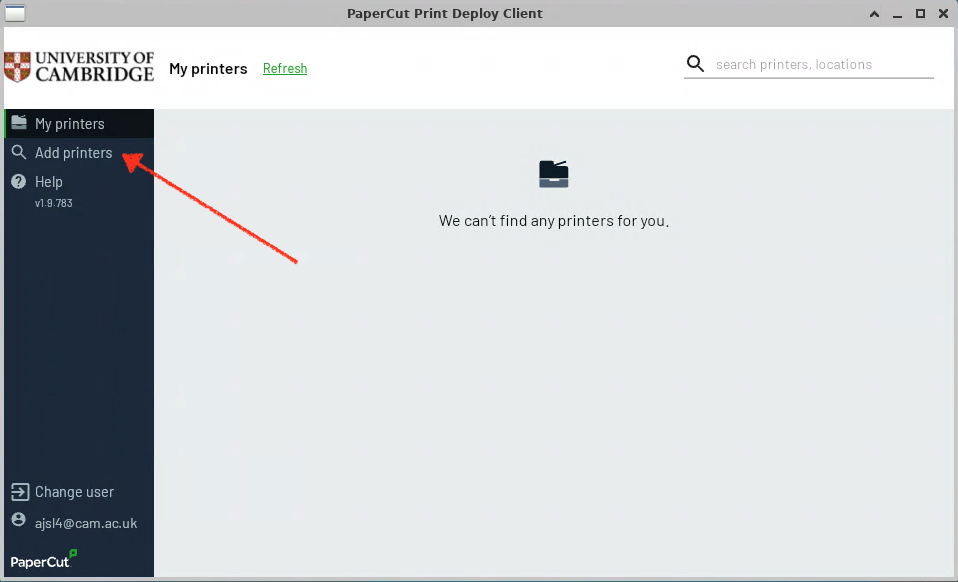
When you have logged in a window something like the below will appear. If you have no printers you will need to click Add Printer on the left:
You should now be able to search for the Maths_FindMe queue.
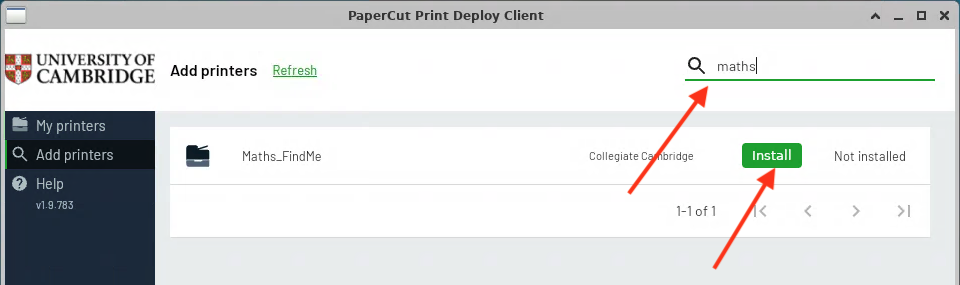
This queue works for all the FindMe printers in Maths. When you print from an application, select the Maths_FindMe printer, and at the printer you want your output to appear at you swipe your University card across the card image on the front.
You can still print to other Maths printers by selecting them in the print dialogue when you want to print.
Troubleshooting
If there is no green icon in the task bar, reboot the system (if using a Linux computer on Hotdesk please first contact help@maths.cam.ac.uk).
If the green icon is still not present, go into the command-line and cd into /opt/PaperCutPrintDeployClient and run by inputting ./initialise.sh.
If you are still having issues, please contact help@maths.cam.ac.uk